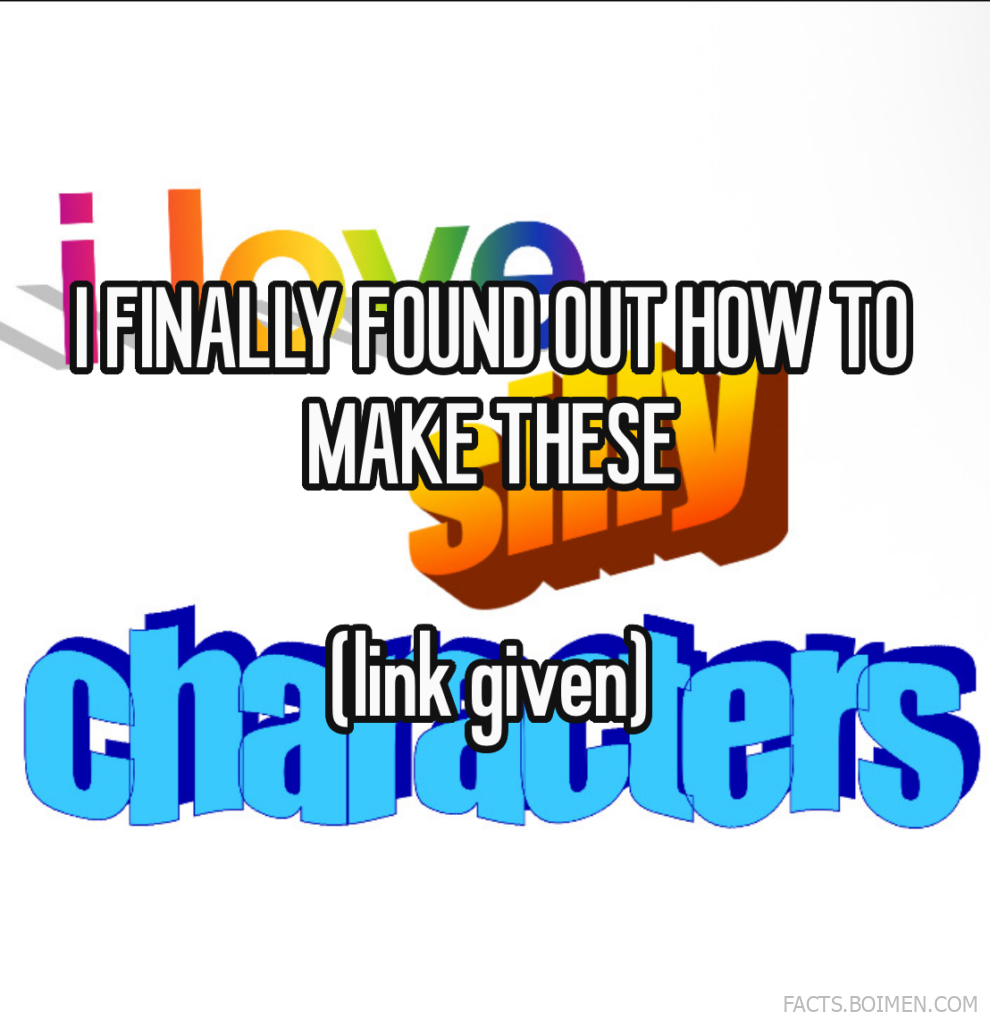
You clicked because you saw the pin: “FINALLY FOUND OUT HOW TO MAKE THESE Chameleis.” That’s the exact moment when you realized that the fancy word art you see on Pinterest isn’t magic—it’s a set of clever online tools that let you twist, bend, and color text into shapes. And the best part? Most of these are free, browser-based, and shockingly easy to use. So here’s the ultimate list: the exact tool that makes those “Chameleis” (yes, it’s a thing) plus 17 other hidden gems that will turn your plain text into eye-popping art.
Table of Contents(Click to Toggle)
- Why You Should Care About Hidden Word Art Tools
- 1. WordArt.com
- 2. Canva Text Effects
- 3. Cool Text
- 4. TextGiraffe
- 5. FlamingText
- 6. MockoFun
- 7. Font Meme
- 8. Textcraft
- 9. PicMonkey
- 10. Pixlr Editor
- 11. Photopea
- 12. BeFunky
- 13. Fotor
- 14. Kapwing
- 15. Textanim
- 16. Lettering.js
- 17. Text Effect Generator
- 18. Glitter Text
- Bonus: DaFont
- Bonus: Google Fonts
- Bonus: Coolors.co
- Bonus: Remove.bg
- Bonus: TinyPNG
- The Best-Kept Word Art Secrets (So Far)
Why You Should Care About Hidden Word Art Tools
Word art isn’t just for school projects anymore. It’s how you make Pinterest pins pop, social media graphics stand out, and personal invitations feel special. The tools below are the ones that pros use behind the scenes—they’re not the first result on Google, but they offer features that big-name editors don’t. From 3D text to glitter effects to custom SVG exports, each one has a superpower that will make you wonder why you ever struggled with basic fonts.
1. WordArt.com : Make stunning word clouds and custom shapes
What it is: WordArt.com is the go-to online word cloud generator that lets you turn any text into a visual masterpiece shaped like animals, objects, or your own uploaded image.
Category: Word cloud / shape art
Why it stands out:
- You can import text from a URL, PDF, or paste it directly, and it instantly generates a cloud.
- Choose from hundreds of built-in shapes or upload your own silhouette—that’s how you get those “Chameleis” effects.
- Customize every word’s color, font, and orientation individually.
- Export in high resolution (PNG, JPG, SVG) for free, with no watermark.
Best for: Creating personalized gifts, posters, and social media graphics with a unique shape.
2. Canva Text Effects : Quick curved and 3D text for social media
What it is: Canva’s text effects tool is a one-click solution for bending, curving, and adding depth to text directly inside the popular design platform.
Category: Design editor
Why it stands out:
- Apply effects like “Curve,” “Lift,” and “Shadow” with a single click.
- You can adjust the curve angle and spacing with a simple slider.
- Integrates with Canva’s massive library of fonts and elements.
- No need to learn complex software—perfect for beginners.
Best for: Social media posts, YouTube thumbnails, and quick quote graphics.
3. Cool Text : Retro and 3D logo text generator
What it is: Cool Text is a classic text effect generator that’s been around since the early internet, offering hundreds of pre-designed styles.
Category: Text effect generator
Why it stands out:
- Pick from styles like “3D,” “Chrome,” “Fire,” “Comic,” and more.
- You can customize colors, gradients, and shadows for each effect.
- Download as PNG or paste the HTML code for websites.
- It’s completely free and requires no sign-up.
Best for: Making quick logos, buttons, and decorative text for blogs.
4. TextGiraffe : Fun 3D text with many styles
What it is: TextGiraffe is a no-frills text effect generator that specializes in 3D and cartoon-style text.
Category: Text effect generator
Why it stands out:
- Offers over 30 different effects, from “Cartoon” to “Undersea.”
- Adjust the depth, lighting, and texture of your text.
- Supports transparent backgrounds for easy overlay.
- Works entirely in your browser—no downloads.
Best for: Creating playful text for party invitations, comics, or kids’ content.
5. FlamingText : Animated and fiery text logos
What it is: FlamingText is a long-standing generator that lets you create text with realistic fire, ice, and other dynamic effects.
Category: Text effect generator
Why it stands out:
- Create animated GIF logos that are perfect for web banners.
- Choose from a huge gallery of pre-made styles, including “Fire,” “Gold,” and “Neon.”
- You can upload your own background image.
- Free options available, with paid upgrades for higher resolution.
Best for: Eye-catching animated text for YouTube intros or website headers.
6. MockoFun : All-in-one graphic design with text effects
What it is: MockoFun is a free online design tool that includes a powerful text effect editor with 3D, neon, and sticker styles.
Category: Design editor
Why it stands out:
- Offers more than 100 text effects, including “3D,” “Chalk,” “Sticker,” and “Neon.”
- You can combine multiple effects on the same text.
- Includes a library of shapes, frames, and mockups.
- Export in high resolution, even with the free plan.
Best for: Creating professional-looking social media graphics and posters.
7. Font Meme : Text generators for famous fonts
What it is: Font Meme is a collection of text generators that let you create text in the style of popular movies, games, and brands.
Category: Text effect generator
Why it stands out:
- Type in “Harry Potter” or “Star Wars” to get that exact look.
- It uses actual font files that replicate the original styles.
- You can download the generated text as a PNG image.
- It also offers a font identifier tool.
Best for: Fan art, cosplay props, and themed party invitations.
8. Textcraft : Minecraft-style text and more
What it is: Textcraft is a generator that creates text with a blocky, Minecraft-like appearance, but also has other pixel styles.
Category: Text effect generator
Why it stands out:
- Choose from different pixel fonts and backgrounds.
- Adjust the size and color of each block.
- Perfect for gaming thumbnails and server logos.
- Free to use, no watermark.
Best for: Gaming content and pixel-art-style text.
9. PicMonkey : User-friendly design suite with text effects
What it is: PicMonkey is a full-featured photo editor and design tool that includes a variety of text effects and fonts.
Category: Design editor
Why it stands out:
- You can add outlines, shadows, and curves to text.
- It offers a huge library of fonts, including hand-lettering styles.
- One-click “Text Effects” for quick enhancements.
- Great for editing photos and adding text overlays.
Best for: Social media graphics and photo typography.
10. Pixlr Editor : Free photo editor with text tools
What it is: Pixlr Editor is a browser-based photo editor that lets you add and style text on your images.
Category: Photo editor
Why it stands out:
- It’s a full editor with layers, so you can add text as a layer and apply effects.
- Use any font installed on your computer.
- Adjust blending modes and opacity for creative text.
- Completely free, no sign-up required.
Best for: Advanced users who want full control over text editing.
11. Photopea : Photoshop clone with advanced text features
What it is: Photopea is a free online editor that mimics Adobe Photoshop’s interface and supports PSD files.
Category: Photo editor
Why it stands out:
- You can use Photoshop tutorials for text effects because it works the same way.
- Supports layer styles like drop shadow, stroke, and gradient overlay.
- Open and edit PSD files directly.
- No installation, works in any browser.
Best for: Professionals who need Photoshop-like functionality without the cost.
12. BeFunky : All-in-one editor with artistic text effects
What it is: BeFunky is a design and photo editor that includes a variety of text effects and graphic overlays.
Category: Design editor
Why it stands out:
- Offers “Text Effects” like neon, glow, and 3D.
- You can add text to any image and then apply artistic filters to the whole design.
- Includes a library of graphics and icons.
- Free plan available with basic features.
Best for: Quick and easy text overlays for social media.
13. Fotor : Online design tool with text and effects
What it is: Fotor is a graphic design and photo editing platform that provides text customization tools.
Category: Design editor
Why it stands out:
- You can add text and adjust its color, font, and outline.
- It has a “Text Effects” section with shadows and glows.
- Offers templates for social media posts.
- Free to use with a watermark, or upgrade for more.
Best for: Creating social media graphics quickly with templates.
14. Kapwing : Collaborative editor with text overlays
What it is: Kapwing is a web-based editor for images and videos that allows you to add and animate text.
Category: Video/photo editor
Why it stands out:
- You can add text to videos and images, then animate it.
- Supports multiple text layers and timing.
- Works in real-time collaboration.
- Free plan with watermarked exports.
Best for: Adding text to short videos for social media.
15. Textanim : Animated text effects for GIFs
What it is: Textanim is a simple tool that creates animated text effects in GIF format.
Category: Text effect generator
Why it stands out:
- Choose from effects like “Wave,” “Blur,” “Slide,” and more.
- Customize speed, direction, and colors.
- Export as GIF, WebM, or MP4.
- No sign-up needed.
Best for: Creating animated headers for websites or email newsletters.
16. Lettering.js : A developer’s toolkit for precise text control
What it is: Lettering.js is a jQuery plugin that splits text into individual letters for CSS styling.
Category: Web development tool
Why it stands out:
- Gives developers full control over each letter in a heading.
- Used to create custom letter-spacing animations.
- Lightweight and easy to integrate.
- Open-source and free.
Best for: Web designers who want to add unique typography effects to sites.
17. Text Effect Generator : One-stop shop for many effects
What it is: This site aggregates dozens of text effects into a single page, letting you generate styled text with one click.
Category: Text effect generator
Why it stands out:
- No need to navigate different tools—everything is on one page.
- Effects include “3D,” “Gradient,” “Outline,” and “Shadow.”
- You can copy the HTML/CSS code for web use.
- Free and unlimited.
Best for: Quick experiments and finding the right effect for your project.
18. Glitter Text : Add sparkle to your words
What it is: Glitter Text is a niche generator that creates text with glittering, sparkling effects.
Category: Text effect generator
Why it stands out:
- Pick from different glitter colors and densities.
- Creates a GIF or PNG with animated sparkles.
- Perfect for party invitations and celebratory posts.
- Simple to use, no sign-up.
Best for: Adding a festive, glamorous touch to graphics.
Bonus: DaFont : The font vault for every style
What it is: DaFont is the largest collection of free fonts, many of which are perfect for word art.
Why it stands out: Thousands of fonts sorted by category, from “Fancy” to “Techno” to “Script.”
Best for: Finding the perfect typeface before you apply effects.
Bonus: Google Fonts : Free web fonts with commercial license
What it is: Google Fonts provides open-source fonts that you can use anywhere.
Why it stands out: High-quality fonts, easy to download, and free for commercial use.
Best for: Web designers and content creators who need reliable fonts.
Bonus: Coolors.co : Color palettes for your text
What it is: A fast color scheme generator.
Why it stands out: You can generate palettes and export them to use in your word art.
Best for: Choosing harmonious colors for your text and background.
Bonus: Remove.bg : Erase backgrounds in one click
What it is: An AI tool that removes image backgrounds automatically.
Why it stands out: Perfect for placing your word art over any background.
Best for: Creating transparent PNGs for layered designs.
Bonus: TinyPNG : Compress images without losing quality
What it is: A tool that reduces PNG and JPEG file sizes.
Why it stands out: Keeps your graphics fast-loading on the web.
Best for: Optimizing your final word art for websites.
The Best-Kept Word Art Secrets (So Far)
These tools are the ones that will make your text pop, whether you’re creating a Pinterest pin, a poster, or a personal project. The key is to experiment: start with WordArt.com for those shape-based clouds, then try Canva for quick curves, and explore MockoFun when you want to layer effects. Each tool has its own personality, and you’ll soon find your favorites. What’s the most creative word art you’ve made with these? Share your finds in the comments below!