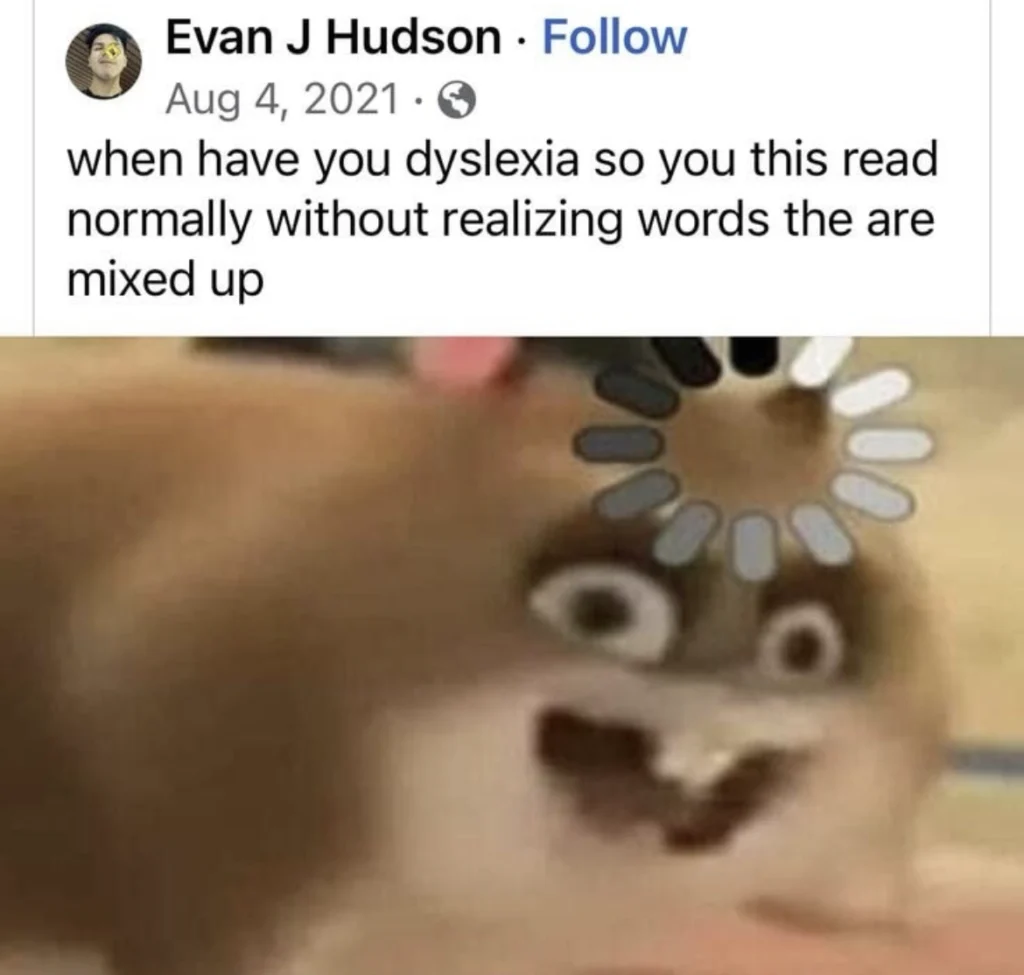
Most people read without ever thinking about how their eyes move across a line of text. For readers with dyslexia, that automatic process works differently, and the gap between how reading feels and how it looks is where curiosity begins. The pin that brought you here pointed at that exact moment: the strange experience of reading words normally while realizing your brain may be rearranging them. The 19 tools below explore that idea from every angle, from simulators that show what mixed-up text looks like to fonts, screen readers, and reading aids that turn confusion into clarity.
Table of Contents(Click to Toggle)
- Why Dyslexia Reading Tools Matter More Than You Think
- 19 Tools That Reveal How Dyslexia Shapes Reading
- 1. Dyslexia Simulator
- 2. OpenDyslexic
- 3. Lexend
- 4. Atkinson Hyperlegible
- 5. Microsoft Immersive Reader
- 6. NaturalReader
- 7. BeeLine Reader
- 8. Helperbird
- 9. Read&Write
- 10. Voice Dream Reader
- 11. Speechify
- 12. Seeing AI
- 13. Dyslexia-friendly reading mode in Firefox
- 14. Spreeder
- 15. Rewordify
- 16. Dyslexie Font
- 17. NVDA
- 18. Grammarly
- 19. Reading Rockets
- Bonus Mentions
- The Internet’s Best-Kept Reading Secrets (So Far)
Why Dyslexia Reading Tools Matter More Than You Think
Dyslexia affects roughly one in ten people, yet most websites are still built as if every reader processes text the same way. That mismatch explains the viral appeal of the pin you clicked: it captures the quiet surprise of realizing that reading is not one skill but a bundle of them, and that small changes in font, spacing, or color can shift the experience dramatically. Exploring these tools is not just an accessibility exercise. It is a rare chance to see how your own brain handles language, and to borrow tricks that make reading easier for everyone, not only for people with dyslexia.
19 Tools That Reveal How Dyslexia Shapes Reading
1. Dyslexia Simulator : See what mixed-up words actually look like
What it is: A category of browser-based simulators that scramble, mirror, and jitter text to approximate how some readers with dyslexia perceive a page.
Category: Awareness and simulation
Why it stands out:
- Instantly turns an abstract idea into a felt experience
- Useful for teachers, designers, and curious readers alike
- Runs in a browser with no installation
Best for: Anyone who wants the “aha” moment behind the pin’s promise.
2. OpenDyslexic : A free font built to reduce letter confusion
What it is: An open-source typeface with weighted letter bottoms that help anchor characters and reduce flipping.
Category: Fonts
Why it stands out:
- Free to download and embed in websites
- Available as a browser extension for everyday reading
- Pairs well with wider line spacing settings
Best for: Readers who want a simple font swap with no account required.
3. Lexend : A font family designed for reading fluency
What it is: A typeface family developed with reading-proficiency research in mind, with adjustable spacing and weight.
Category: Fonts
Why it stands out:
- Free on Google Fonts for web and document use
- Multiple widths and weights to tune readability
- Clean enough for professional documents
Best for: Designers and students who need a dyslexia-friendly font that still looks polished.
4. Atkinson Hyperlegible : Letterforms that stay distinct at small sizes
What it is: A free font from the Braille Institute that exaggerates differences between commonly confused characters.
Category: Fonts
Why it stands out:
- Designed for low vision but helpful for dyslexic readers too
- Free for commercial and personal use
- Excellent for signage and small print
Best for: Anyone who loses track of letters like b, d, p, and q.
5. Microsoft Immersive Reader : Read aloud, spacing, and syllable tools in one place
What it is: A free reading toolkit built into Microsoft Edge, Word, and OneNote.
Category: Reading support
Why it stands out:
- Line focus mode highlights one line at a time
- Adjustable text spacing and column width
- Built-in read-aloud with natural voices
Best for: Students and office workers already inside Microsoft apps.
6. NaturalReader : Turn any page or PDF into audio
What it is: A text-to-speech tool with browser extension, desktop app, and mobile support.
Category: Text-to-speech
Why it stands out:
- Drag-and-drop PDF and document conversion
- Multiple voice options including premium voices
- Free tier covers everyday reading
Best for: Commuters and multitaskers who want to listen instead of read.
7. BeeLine Reader : Gradient color trails that guide the eye
What it is: A reading aid that colors lines with a subtle gradient to help eyes track from one line to the next.
Category: Reading support
Why it stands out:
- Reduces line-skipping on dense pages
- Works as a browser extension and PDF tool
- Simple on-off toggle with adjustable intensity
Best for: Readers who lose their place in long articles.
8. Helperbird : An accessibility toolbar for the web
What it is: A browser extension bundling fonts, overlays, rulers, and text-to-speech into one panel.
Category: Browser accessibility
Why it stands out:
- Dozens of toggles in a single interface
- Reading ruler and color overlay options
- Works across most Chromium browsers
Best for: People who want one extension instead of five.
9. Read&Write : A study companion with word prediction
What it is: A literacy toolbar for documents and web pages, widely used in schools.
Category: Literacy support
Why it stands out:
- Word prediction and speech input
- Dictionary and picture dictionary lookups
- Highlight and collect text for study notes
Best for: Students writing essays who need help with spelling and vocabulary.
10. Voice Dream Reader : A focused mobile reading app
What it is: A mobile app that reads documents, ebooks, and web articles aloud with customizable visuals.
Category: Mobile reading
Why it stands out:
- Syncs highlighting with spoken words
- Font, spacing, and color customization
- Supports many document formats
Best for: Phone-first readers who want a dedicated reading environment.
11. Speechify : Listen to almost anything at your own pace
What it is: A text-to-speech service with browser, mobile, and desktop apps.
Category: Text-to-speech
Why it stands out:
- High-quality natural voices
- Speed control from slow to fast
- Can read scanned pages via camera on mobile
Best for: Readers who absorb content faster by ear.
12. Seeing AI : A free app that reads the world aloud
What it is: A Microsoft app that narrates text, documents, and products through a phone camera.
Category: Mobile accessibility
Why it stands out:
- Reads printed pages and handwriting
- Free with no account needed
- Useful for menus, labels, and mail
Best for: Anyone who struggles with small or unfamiliar print in the real world.
13. Firefox Reader View : Strip a page down to readable text
What it is: A built-in reading mode in Firefox that removes ads and clutter and lets you adjust font and spacing.
Category: Browser reading modes
Why it stands out:
- No extension or account required
- Adjustable width, font, and contrast
- Works on most article pages
Best for: Readers distracted by busy layouts.
14. Spreeder : Train your eyes to read in chunks
What it is: A speed-reading trainer that flashes words or phrases one at a time.
Category: Reading training
Why it stands out:
- Adjustable words-per-minute and chunk size
- Reduces subvocalization and line-skipping
- Free browser-based practice
Best for: Curious readers testing whether chunked reading suits them.
15. Rewordify : Simplify hard text without losing meaning
What it is: A free tool that replaces tricky vocabulary with simpler words and explains the originals.
Category: Vocabulary support
Why it stands out:
- Instant simplification of pasted text or URLs
- Builds a personal vocabulary list
- No login required
Best for: Students facing dense textbooks or classic literature.
16. Dyslexie Font : A commercial font with a devoted following
What it is: A typeface with tilted, weighted letters designed to reduce swapping and rotation errors.
Category: Fonts
Why it stands out:
- Widely used in Dutch and European schools
- Available for web, desktop, and e-readers
- Free for personal use with paid licenses for organizations
Best for: Readers who want a more stylized alternative to OpenDyslexic.
17. NVDA : A free screen reader for Windows
What it is: An open-source screen reader that speaks everything on screen.
Category: Screen readers
Why it stands out:
- Completely free with active development
- Works with most Windows applications
- Portable version runs from a USB drive
Best for: Readers who want full keyboard-driven navigation.
18. Grammarly : Catch the slips that dyslexia can hide
What it is: A writing assistant that flags spelling, grammar, and clarity issues as you type.
Category: Writing support
Why it stands out:
- Real-time corrections in browsers and documents
- Explains why a change is suggested
- Free tier covers core spelling and grammar
Best for: Writers who want a safety net before hitting send.
19. Reading Rockets : A deep library of reading research and tips
What it is: A nonprofit site packed with articles, videos, and guides about how reading develops.
Category: Education and research
Why it stands out:
- Plain-language explanations of reading science
- Practical classroom and home strategies
- Free and ad-light
Best for: Parents and teachers who want context behind the tools.
Bonus Mentions
Understood.org : Practical guides for learning differences
LD OnLine : A long-running resource for learning disabilities
Bookshare : Accessible ebooks for qualifying readers
Tales2Go : Audiobooks for young readers
OverDrive : Library ebooks and audiobooks in one app
The Internet’s Best-Kept Reading Secrets (So Far)
The best of these tools share one quality: they do not ask you to change who you are, only how a page is presented. A font swap, a line-focus mode, or a read-aloud voice can quietly close the gap between how text looks and how it lands. That is the real answer to the pin’s promise. Reading normally while words rearrange themselves is not a personal failing; it is a signal that the page, not the reader, can be adjusted. Start with one tool, notice what changes, and keep the ones that make reading feel lighter. Which of these surprised you most, or do you have a hidden gem of your own to add?