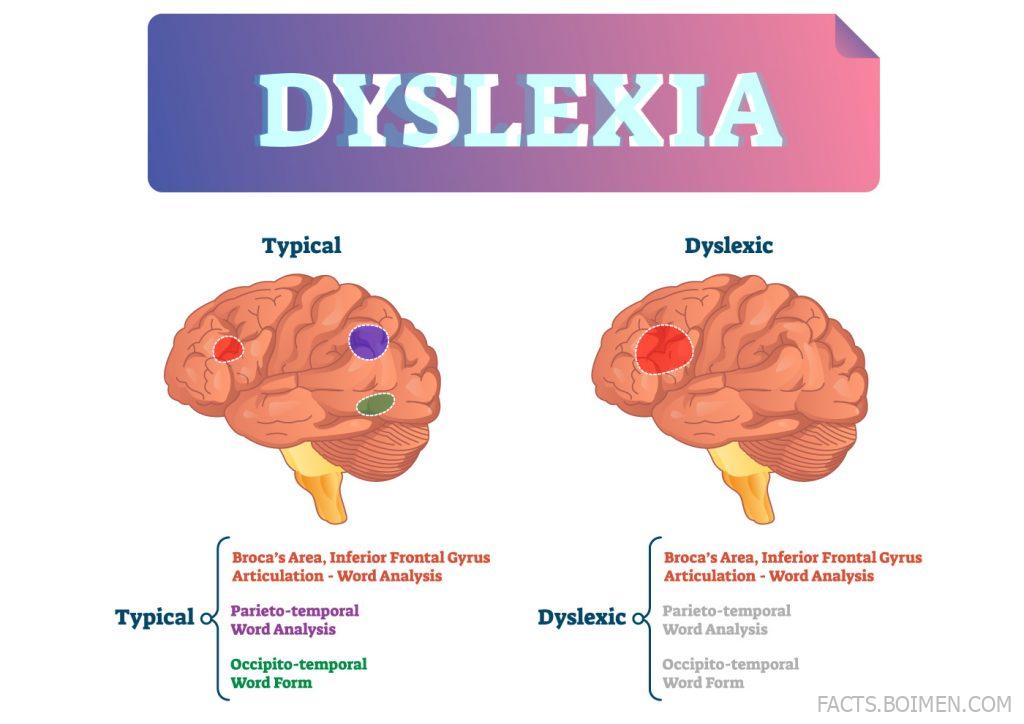
Have you ever wondered why a bright child or colleague struggles to read simple words? Dyslexia affects roughly 10% of the population, yet most people have never experienced the frustrating visual and cognitive distortions that come with it. That’s why we’ve gathered 17 interactive websites and tools that simulate dyslexia and other reading challenges. These resources help you step into someone else’s shoes, making you a more empathetic communicator, designer, or educator. From text scramblers to font overlays, each site offers a unique window into the dyslexic reading experience. Dive in and discover how a few clicks can transform your understanding.
Table of Contents(Click to Toggle)
- Why Simulating Dyslexia Matters
- 17 Tools to Experience Dyslexia
- 1. Dyslexia Simulator
- 2. WebAIM Dyslexia Simulation
- 3. Dyslexiaville
- 4. Understood.org Dyslexia Simulation
- 5. Dyslexia Reading Well
- 6. Dyslexia Help
- 7. The Yale Center for Dyslexia
- 8. Dyslexia.com
- 9. Nessy
- 10. OpenDyslexic
- 11. Dyslexia Gold
- 12. Tinted Lens Simulator
- 13. NoCoffee Vision Simulator
- 14. Funkify
- 15. Alt Text Tester
- 16. Web Disability Simulator
- 17. Dyslexia Simulator (GitHub)
- Bonus: Dyslexia Fonts
- Bonus: Reading Ruler
- Bonus: BeeLine Reader
- Bonus: Immersive Reader
- Bonus: Microsoft Learning Tools
- The Internet’s Best-Kept Secrets (So Far)
Why Simulating Dyslexia Matters
Dyslexia is not about intelligence; it’s a different wiring of the brain that makes decoding text unusually difficult. When you personally experience the jumbled letters, the words that seem to swim on the page, or the exhaustion after reading a single paragraph, something clicks. You stop seeing dyslexia as an excuse and start seeing it as a daily hurdle. These simulations are not perfect—they’re approximations—but they build bridges. They help teachers choose better fonts, designers create accessible websites, and employers understand why a brilliant employee might need extra time on a report. By spending just a few minutes with these tools, you become part of the solution.
17 Tools to Experience Dyslexia
1. Dyslexia Simulator : The classic text-scrambling experience
What it is: A simple web tool that takes any text you type and applies a series of visual distortions that mimic common dyslexic reading errors.
Category: Text-based simulator
Why it stands out:
- Instantly flips letters (b/d, p/q) and swaps word order to create a jumbled effect.
- Adjustable severity sliders let you see mild to severe distortion.
- Works on any custom text, so you can test with your own writing.
Best for: Educators and parents who want a quick, visceral demonstration of how letters can appear to dance on a page.
2. WebAIM Dyslexia Simulation : A research-backed demo from accessibility experts
What it is: A simulation created by WebAIM, a leading accessibility organization, that shows how text with poor spacing and font choices can be difficult for readers with dyslexia.
Category: Accessibility simulation
Why it stands out:
- Focuses on real-world web content, not just random letters.
- Highlights the importance of line height, letter spacing, and font selection.
- Includes a side-by-side comparison of good and bad typography.
Best for: Web designers and developers who need concrete examples of accessible text formatting.
3. Dyslexiaville : Interactive games that reveal reading challenges
What it is: A collection of interactive games and activities designed to help users understand the cognitive and visual aspects of dyslexia.
Category: Educational games
Why it stands out:
- Games simulate phonemic awareness difficulties, like blending sounds.
- Each activity is followed by an explanation of the underlying skill.
- Kid-friendly interface makes it great for classroom use.
Best for: Teachers and parents looking for an engaging way to explain dyslexia to children.
4. Understood.org Dyslexia Simulation : A video-based experience
What it is: A guided video simulation that walks you through a day in the life of a student with dyslexia, from reading a worksheet to copying from the board.
Category: Video simulation
Why it stands out:
- Narrated by actual students sharing their frustrations and coping strategies.
- Shows the emotional toll of struggling to read in a classroom setting.
- Includes practical tips for teachers to create a supportive environment.
Best for: Anyone who wants an emotional, story-driven understanding of dyslexia’s daily impact.
5. Dyslexia Reading Well : A comprehensive resource hub with simulations
What it is: A website that offers a wealth of information on dyslexia, including a text-based simulation that shows how reading can feel for someone with the condition.
Category: Informational resource
Why it stands out:
- Simulation uses real paragraphs that become increasingly garbled.
- Provides explanations for each type of distortion.
- Links to research and further reading for deeper dives.
Best for: Self-learners who want both a simulation and a thorough overview of dyslexia.
6. Dyslexia Help : University-backed simulations and tools
What it is: A resource from the University of Michigan that offers a variety of simulations, including text distortion and visual stress demonstrations.
Category: Academic resource
Why it stands out:
- Includes a “Dyslexia Simulation” that mimics letter reversals and crowding.
- Offers a separate simulation for visual stress (Irlen syndrome).
- Backed by research from a leading institution.
Best for: Students and researchers who need credible, citable tools for presentations or papers.
7. The Yale Center for Dyslexia : Expert insights and interactive examples
What it is: Yale’s renowned center provides a wealth of information, including interactive examples that demonstrate how dyslexia affects reading and writing.
Category: Research institution
Why it stands out:
- Features real handwriting samples and reading errors from individuals with dyslexia.
- Offers a “Dyslexia Simulation” that shows how words can appear reversed or swapped.
- Includes videos of personal stories and expert interviews.
Best for: Professionals and educators seeking authoritative, evidence-based perspectives.
8. Dyslexia.com : The Davis method’s simulation and insights
What it is: A site rooted in the Davis Dyslexia Correction method, offering a simulation that illustrates how disorientation can affect perception of text.
Category: Method-specific resource
Why it stands out:
- Simulation focuses on the feeling of words moving or blurring.
- Explains the Davis theory of dyslexia as a picture-thinking style.
- Provides links to local Davis facilitators.
Best for: Parents considering the Davis method and wanting to understand its perspective.
9. Nessy : Fun games that simulate reading difficulties
What it is: Nessy creates educational software for dyslexic learners, and their website includes interactive demos that show why certain letter combinations are tricky.
Category: Educational software
Why it stands out:
- Games highlight common confusions like “b” vs “d” and “was” vs “saw”.
- Uses a playful, cartoon style that appeals to kids.
- Offers free trials of their full programs.
Best for: Homeschooling parents and tutors looking for engaging interventions.
10. OpenDyslexic : A font that changes how text feels
What it is: A free typeface designed to increase readability for people with dyslexia, with letter shapes that reduce confusion.
Category: Font tool
Why it stands out:
- Letters have heavy bottoms to prevent flipping.
- Can be installed on your computer or used via browser extensions.
- Open-source and free for personal and commercial use.
Best for: Anyone who wants to experience how a different font can dramatically alter reading ease.
11. Dyslexia Gold : Interactive exercises that reveal processing delays
What it is: A program that uses games to assess and improve reading skills, with a demo that simulates the experience of slow visual processing.
Category: Assessment tool
Why it stands out:
- Simulation shows how words can appear to move or fade.
- Includes a “Reading Age” test that gives immediate feedback.
- Used in thousands of schools worldwide.
Best for: Teachers and specialists who want a data-driven simulation.
12. Tinted Lens Simulator : See how visual stress affects reading
What it is: An online tool that simulates visual stress (Meares-Irlen syndrome), a condition that often co-occurs with dyslexia, by applying color overlays.
Category: Visual stress simulator
Why it stands out:
- Lets you adjust tint colors to see which ones reduce distortion.
- Demonstrates how text can appear to vibrate or blur.
- Provides information on tinted lenses as a coping strategy.
Best for: People who suspect they have visual stress alongside reading difficulties.
13. NoCoffee Vision Simulator : A browser extension for visual impairments
What it is: A browser add-on that simulates various visual impairments, including those common in dyslexia, such as reduced contrast and tunnel vision.
Category: Browser extension
Why it stands out:
- Can be toggled on and off to compare normal and impaired vision.
- Includes a “dyslexia” preset that blurs and distorts text.
- Works on any website, making it great for testing accessibility.
Best for: Web developers who want to see their site through the eyes of users with visual challenges.
14. Funkify : A disability simulator for websites
What it is: Funkify is a browser extension that simulates a range of disabilities, including dyslexia, to help you experience digital interfaces differently.
Category: Accessibility simulator
Why it stands out:
- Includes a “Dyslexia” mode that scrambles letters and words.
- Simulates other conditions like Parkinson’s and low vision.
- Provides a “stress score” to quantify difficulty.
Best for: UX designers and product managers who need to advocate for inclusive design.
15. Alt Text Tester : Understand the importance of text alternatives
What it is: While not a direct dyslexia simulator, this tool helps you see how images without alt text appear to screen readers, a crucial aspect of accessibility for dyslexic users who rely on audio.
Category: Accessibility checker
Why it stands out:
- Highlights missing alt text on any webpage.
- Shows how screen readers announce images.
- Simple, one-click analysis.
Best for: Content creators who want to make their sites more inclusive for all readers.
16. Web Disability Simulator : A Chrome extension for multiple conditions
What it is: A Chrome extension that simulates various disabilities, including dyslexia, by applying visual filters and text distortions.
Category: Browser extension
Why it stands out:
- Offers a “Dyslexia” mode that jumbles letters and spacing.
- Also simulates color blindness, tremors, and more.
- Easy to install and use on any website.
Best for: Developers and designers who want a quick, free way to test accessibility.
17. Dyslexia Simulator (GitHub) : An open-source text scrambler
What it is: A lightweight, open-source web tool that applies dyslexia-like distortions to any text you paste in.
Category: Open-source tool
Why it stands out:
- Completely free and customizable if you know a little code.
- No ads or tracking—just pure functionality.
- Includes options for letter swapping, rotation, and blur.
Best for: Tech-savvy users who want to embed a simulator into their own projects.
Bonus: Dyslexie Font : A typeface designed for easier reading
What it is: A commercial font that makes letters more distinct to reduce reading errors.
Category: Font
Why it stands out:
- Letters have unique shapes to prevent confusion.
- Used by schools and publishers worldwide.
- Offers a free version for personal use.
Best for: Anyone who wants to try reading with a dyslexia-friendly font.
Bonus: Reading Ruler : A simple overlay to track lines
What it is: A browser extension that adds a colored ruler to help you follow lines of text.
Category: Reading aid
Why it stands out:
- Reduces line skipping and eye strain.
- Customizable color and transparency.
- Works on any website.
Best for: Readers who lose their place easily.
Bonus: BeeLine Reader : Color gradients that guide your eyes
What it is: A tool that uses color gradients to make reading faster and easier.
Category: Reading aid
Why it stands out:
- Helps with line tracking and reduces fatigue.
- Available as a browser extension and for PDFs.
- Research-backed improvement in reading speed.
Best for: Students and professionals who read long documents.
Bonus: Immersive Reader : Microsoft’s built-in reading support
What it is: A free tool integrated into Microsoft Edge, Word, and OneNote that reads text aloud and offers visual adjustments.
Category: Reading support
Why it stands out:
- Can change font size, spacing, and background color.
- Reads text aloud with highlighting.
- Helps with focus and comprehension.
Best for: Anyone who wants a built-in accessibility tool without installing anything.
Bonus: Microsoft Learning Tools : A suite of inclusive features
What it is: A set of tools within Microsoft products that support reading, writing, and math for diverse learners.
Category: Educational suite
Why it stands out:
- Includes dictation, read-aloud, and line focus.
- Free with Microsoft accounts.
- Designed with dyslexic users in mind.
Best for: Students and educators in Microsoft-centric environments.
The Internet’s Best-Kept Secrets (So Far)
These 17 tools offer more than just a glimpse into dyslexia—they build empathy and drive better design. Whether you’re a teacher, a developer, or simply curious, spending time with these simulators can change how you see the world. Remember, no simulation is perfect, but each one adds a piece to the puzzle. The next time you encounter someone struggling to read, you’ll have a deeper understanding of their challenge. Which tool surprised you the most? Share your own favorite discovery in the comments below—we’re always looking for hidden gems.