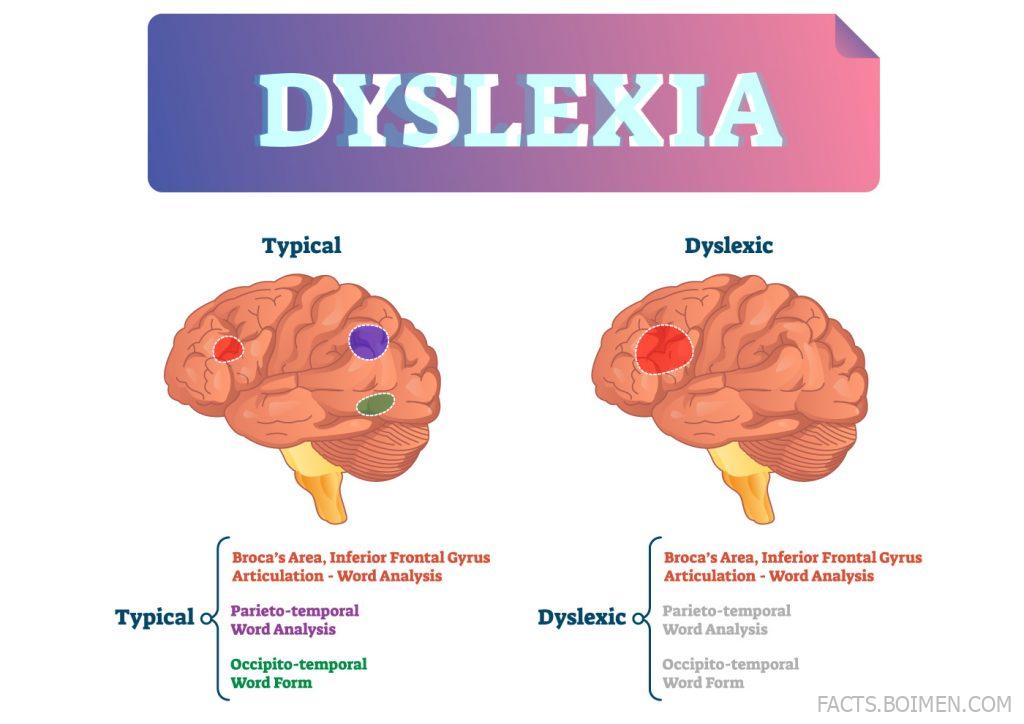
Most people read without thinking about it. The letters line up, the words snap into meaning, and the page disappears behind the story. For roughly one in ten readers, that quiet automatic process never quite happens — letters swap places, lines jump, and decoding takes conscious effort. A dyslexia simulator flips the experience around: for a few minutes, you read the way a dyslexic reader might, and the page stops being invisible.
These tools are used in teacher training, UX accessibility audits, classroom empathy exercises, and by curious people who simply want to understand. Some are polished web apps, some are tiny browser experiments, and a few are full research-grade platforms. All of them are free or have a free tier, and none of them require an account to try the core experience.
Table of Contents(Click to Toggle)
- Why Dyslexia Simulators Change How You See Reading
- 18 Dyslexia Simulator Tools Worth Trying
- 1. Dsxyliea
- 2. Dyslexia Simulator (Weird Fonts Lab)
- 3. OpenDyslexic
- 4. Dyslexie Font
- 5. Lexend
- 6. NoCoffee Vision Simulator
- 7. Funkify
- 8. Silktide Disability Simulator
- 9. WAVE Web Accessibility Evaluation Tool
- 10. WebAIM Contrast Checker
- 11. Color Oracle
- 12. BeeLine Reader
- 13. Immersive Reader
- 14. Helperbird
- 15. Voice Dream Reader
- 16. NaturalReader
- 17. Texthelp Read&Write
- 18. Microsoft Learning Tools
- Bonus Mentions
- The Internet’s Best-Kept Secrets (So Far)
Why Dyslexia Simulators Change How You See Reading
Empathy is hard to manufacture. You can read a paragraph about dyslexia, nod along, and still not feel the friction of a sentence that refuses to settle. A simulator removes that distance. When letters begin to rotate, mirror, or swap places mid-paragraph, your reading speed drops, your eyes backtrack, and you start guessing from context — exactly the compensatory strategies dyslexic readers use every day.
That shift matters well beyond the classroom. Designers, product managers, and content creators who try a simulator tend to make different choices: bigger line spacing, shorter sentences, cleaner fonts, less visual noise. Teachers use them to brief colleagues before a student arrives. Parents use them to understand why homework takes three hours instead of thirty minutes. And plenty of people just try one out of curiosity and walk away with a sharper sense of how fragile fluent reading really is.
The eighteen tools below range from one-click web experiments to full accessibility suites. Start with number one — it is the exact experience that inspired this list.
18 Dyslexia Simulator Tools Worth Trying
1. Dsxyliea : The classic one-page reading simulation
What it is: A single-page website that renders a short story with letters constantly shifting, swapping, and mirroring as you scroll and read.
Category: Reading simulation
Why it stands out:
- No setup, no account — the effect starts the moment the page loads
- Letters visibly swap positions mid-word, which mimics the decoding instability many dyslexic readers describe
- Short enough to finish in two minutes, which makes it ideal for classroom demos
Best for: A first, visceral taste of what dyslexic reading can feel like.
2. Dyslexia Simulator (Weird Fonts Lab) : Font-based distortion experiments
What it is: A font playground that lets you type your own text and apply distortion filters that approximate letter confusion and crowding.
Category: Typography experiment
Why it stands out:
- You control the input text, so you can test your own name, a headline, or a school worksheet
- Shows how much legibility depends on letterform design rather than content
- Useful for comparing a standard serif against a dyslexia-friendly alternative side by side
Best for: Designers testing how a font choice affects readability.
3. OpenDyslexic : The free font built for dyslexic readers
What it is: An open-source typeface with weighted bottoms on each letter, designed to reduce the flipping and rotation that causes confusion.
Category: Accessibility font
Why it stands out:
- Completely free and open source, so it can be embedded in websites and apps without licensing costs
- Available for browsers, e-readers, and operating systems
- The heavy baseline acts as a visual anchor that helps letters stay oriented
Best for: Readers who want a permanent font swap on their devices.
4. Dyslexie Font : A commercial typeface with research backing
What it is: A paid typeface family designed by a dyslexic designer, with distinctive letter shapes that reduce mirroring.
Category: Accessibility font
Why it stands out:
- Each letter has a unique silhouette, so b, d, p, and q are harder to confuse
- Includes a browser extension and e-reader versions
- Widely adopted by schools in several countries
Best for: Institutions that want a licensed, supported font option.
5. Lexend : A free readability-first font family
What it is: A free variable font family designed to reduce visual stress and improve reading proficiency.
Category: Accessibility font
Why it stands out:
- Backed by reading-proficiency research rather than pure aesthetics
- Variable weights let you fine-tune density without switching families
- Free for both personal and commercial use
Best for: Web designers who want a cleaner alternative to OpenDyslexic.
6. NoCoffee Vision Simulator : A browser extension for vision impairment
What it is: A free browser extension that overlays simulated vision conditions — including low acuity, contrast loss, and visual field defects — onto any web page.
Category: Vision simulator
Why it stands out:
- Works on any site you visit, so you can test real pages rather than demos
- Includes a dyslexia-adjacent blur and crowding mode
- Runs locally in the browser with no data collection
Best for: Accessibility auditors checking real-world pages.
7. Funkify : A disability simulator for Chrome
What it is: A Chrome extension that simulates dyslexia, tunnel vision, tremor, and other conditions while you browse.
Category: Disability simulator
Why it stands out:
- The dyslexia mode scrambles and animates text on live pages, not just samples
- Includes motor and vision simulations in the same toolbar
- Popular in UX workshops as a quick empathy exercise
Best for: Product teams running accessibility training sessions.
8. Silktide Disability Simulator : A free web-based empathy tool
What it is: A browser-based simulator that applies dyslexia, blur, and color-vision filters to any URL you paste in.
Category: Disability simulator
Why it stands out:
- No installation — it runs entirely in the browser
- Lets you compare a page before and after the simulation
- Pairs naturally with Silktide’s accessibility testing suite
Best for: Quick demos without installing an extension.
9. WAVE Web Accessibility Evaluation Tool : See what screen readers see
What it is: A free tool that annotates any web page with accessibility errors, alerts, and structural information.
Category: Accessibility audit
Why it stands out:
- Highlights missing alt text, poor heading order, and contrast issues instantly
- Works as a browser extension or a pasted-URL checker
- Complements reading simulators by showing the structural side of the problem
Best for: Anyone who wants to fix a page, not just feel it.
10. WebAIM Contrast Checker : Fix the contrast that breaks reading
What it is: A simple tool that tests whether your text and background colors meet WCAG contrast ratios.
Category: Accessibility audit
Why it stands out:
- Instant pass/fail feedback with the exact ratio number
- Suggests nearby colors that pass when yours fails
- One of the fastest wins for readers with low vision or dyslexia
Best for: Designers choosing text colors for long-form content.
11. Color Oracle : A color-blindness simulator for your desktop
What it is: A free desktop app that applies color-vision deficiency filters to your entire screen in real time.
Category: Vision simulator
Why it stands out:
- Works across every application, not just the browser
- Covers deuteranopia, protanopia, and tritanopia
- Useful for checking charts, maps, and color-coded interfaces
Best for: Data visualization and interface design work.
12. BeeLine Reader : Color gradients that guide the eye
What it is: A reading tool that applies a color gradient across each line of text to help the eye track from one line to the next.
Category: Reading aid
Why it stands out:
- Reduces line-skipping, a common problem for dyslexic readers
- Available as a browser extension and a mobile app
- Works on PDFs and web articles alike
Best for: Readers who lose their place in dense paragraphs.
13. Immersive Reader : Microsoft’s built-in reading support
What it is: A free reading mode inside Microsoft Edge, Word, and OneNote that adds line focus, read-aloud, and syllable splitting.
Category: Reading aid
Why it stands out:
- Line Focus dims everything except one, three, or five lines at a time
- Read-aloud highlights each word as it is spoken
- Already installed on most Windows devices — no download needed
Best for: Students who want support without extra software.
14. Helperbird : An accessibility toolbar in one extension
What it is: A browser extension bundling dyslexia-friendly fonts, reading rulers, text-to-speech, and color overlays.
Category: Accessibility suite
Why it stands out:
- Combines a dozen small reading aids in a single toolbar
- Includes an overlay tint that some readers find reduces visual stress
- Free tier covers the core reading tools
Best for: Readers who want one extension instead of five.
15. Voice Dream Reader : Text-to-speech that follows along
What it is: A mobile reading app that converts documents and web pages into spoken audio with synchronized word highlighting.
Category: Text-to-speech
Why it stands out:
- Supports PDFs, EPUBs, and web articles
- Multiple high-quality voices and adjustable reading speeds
- Highlighting keeps visual and auditory reading in sync
Best for: Readers who absorb more through listening than looking.
16. NaturalReader : Paste text, hear it read
What it is: A web and desktop tool that reads pasted text, documents, and web pages aloud with natural-sounding voices.
Category: Text-to-speech
Why it stands out:
- Free browser version handles most everyday reading tasks
- Supports MP3 export on paid plans for offline listening
- Simple enough for a first-time user to master in a minute
Best for: Quick read-aloud of articles and study notes.
17. Texthelp Read&Write : A literacy toolbar for schools and work
What it is: A comprehensive literacy support toolbar with text-to-speech, word prediction, dictionaries, and screenshot reading.
Category: Accessibility suite
Why it stands out:
- Works across browsers, Word, Google Docs, and PDFs
- Word prediction helps with spelling and sentence construction
- Widely deployed in schools and universities with training resources
Best for: Institutions supporting many readers at once.
18. Microsoft Learning Tools : Free classroom-ready reading support
What it is: The broader family of Microsoft reading features spanning Edge, Word, OneNote, and Teams.
Category: Reading aid
Why it stands out:
- Includes syllable breakdown, parts-of-speech highlighting, and translation
- Free for anyone with a Microsoft account
- Deployed at scale in schools, so students often already have access
Best for: Teachers building a low-cost support toolkit.
Bonus Mentions
Reading Rockets : Background reading on how dyslexia works
What it is: A nonprofit resource library explaining reading development and dyslexia for parents and teachers.
Category: Education resource
Why it stands out:
- Plain-language explanations of decoding, fluency, and phonemic awareness
- Free classroom strategies and printable guides
Best for: Understanding the science behind the simulations.
Understood : Practical guidance for families
What it is: A nonprofit offering articles, tools, and community support for learning differences.
Category: Education resource
Why it stands out:
- Covers school accommodations and IEP basics
- Includes first-person stories from dyslexic adults and students
Best for: Parents navigating school support systems.
International Dyslexia Association : The research-backed reference
What it is: A long-running nonprofit publishing fact sheets, research summaries, and provider directories.
Category: Education resource
Why it stands out:
- Fact sheets are concise and citation-backed
- Provider directory helps locate qualified specialists
Best for: Anyone who wants authoritative definitions.
LD OnLine : A deep archive of learning-disability articles
What it is: A long-standing site with articles, expert Q&As, and teaching strategies for learning disabilities.
Category: Education resource
Why it stands out:
- Decades of archived material, still freely accessible
- Strong coverage of classroom accommodations
Best for: Teachers looking for practical classroom ideas.
Bookshare : Accessible books for qualifying readers
What it is: A nonprofit digital library offering accessible-format books for readers with print disabilities.
Category: Accessible library
Why it stands out:
- Hundreds of thousands of titles in audio, braille, and large-print formats
- Free for qualifying U.S. students
Best for: Readers who need books in an accessible format.
The Internet’s Best-Kept Secrets (So Far)
What makes these tools quietly remarkable is how little they ask of you. No sign-up walls, no upsells on the first click, no app store detour. Dsxyliea loads and the letters start moving. Funkify installs in seconds and scrambles a real page. OpenDyslexic sits in a font menu waiting to be chosen. Each one converts an abstract idea into something you can feel in under five minutes.
If you take one thing away, let it be this: reading fluency is a design outcome, not just a skill. Line height, contrast, font choice, and sentence length all decide whether a page welcomes a reader or exhausts one. The simulators show you the problem; the fonts, overlays, and read-aloud tools show you how fixable it often is. Try the first one, then try one fix on your own website or classroom handout. The gap between them is smaller than you would expect.
Which simulator surprised you most — and did you end up changing anything about how you write or design? Share your find in the comments.