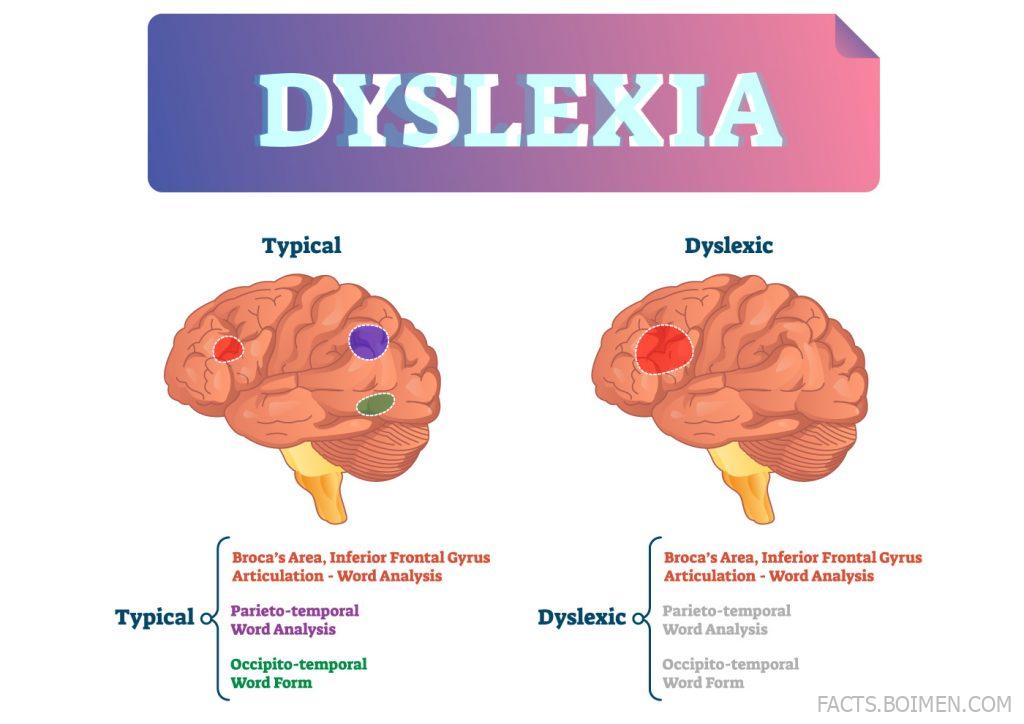
There is a famous little web page that most people stumble on by accident and then send to five friends. It renders a paragraph the way many people with dyslexia describe seeing text: letters that seem to swap places, words that tilt and slide, sentences that refuse to sit still. It takes about ten seconds to read and it changes how you think about reading forever. That page is the first item below, and everything after it is a closely related tool, font, reader, or experiment that does something similar: it lets you feel a reading difference instead of just reading about it.
Table of Contents(Click to Toggle)
- Why Simulating Dyslexia Changes How You See Every Page
- 19 Tools That Show How Reading With Dyslexia Feels
- 1. Dsxyliea
- 2. OpenDyslexic
- 3. Dyslexie Font
- 4. Microsoft Immersive Reader
- 5. BeeLine Reader
- 6. Helperbird
- 7. Voice Dream Reader
- 8. Learning Ally
- 9. Bookshare
- 10. NaturalReader
- 11. Speechify
- 12. Read&Write by Texthelp
- 13. Snap&Read
- 14. Tint & Overlay Browser Extension
- 15. Lexie
- 16. Dyslexia Simulation by Understood
- 17. W3C Cognitive Accessibility Guidance
- 18. Dyslexiaville
- 19. Bionic Reading
- Bonus Mentions
- The Quiet Power of Tools Built for Different Brains
Why Simulating Dyslexia Changes How You See Every Page
Most people read a paragraph about dyslexia, nod, and move on. That is exactly the problem. Reading about a reading difference is like reading about swimming: the words are true, but the experience is invisible. Simulation pages and reading tools close that gap in seconds. They show you how a line of text can wobble, how a single letter can flip, how a wall of dense paragraphs can turn into fog.
That shift matters for three groups. Designers and writers suddenly notice line spacing, font weight, and paragraph length. Teachers and parents get a fast, non-clinical way to explain a struggle to a classroom. And readers with dyslexia themselves get something rarer: a set of tools built to work with their brain instead of against it. The list below starts with the simulation that made all of this go viral, then moves through fonts, screen readers, overlays, and accessibility standards. Each entry is a real, working resource you can open today.
19 Tools That Show How Reading With Dyslexia Feels
1. Dsxyliea : The viral page that scrambles letters in real time
What it is: A single web page that displays a short paragraph while randomly shuffling the letters inside words, mimicking one common reading experience.
Category: Reading simulation
Why it stands out:
- It runs instantly in any browser with no signup, download, or account.
- The effect is subtle at first and then disorienting, which is exactly the point.
- It became a reference point for teachers explaining dyslexia in plain language.
Best for: Anyone who wants a ten-second empathy lesson before designing a page, a worksheet, or a lesson plan.
2. OpenDyslexic : A free typeface with weighted letter bottoms
What it is: An open-source font designed so each letter has a heavier base, which can reduce the sensation of letters flipping or rotating.
Category: Accessible typography
Why it stands out:
- It is completely free and can be embedded in websites, apps, and print materials.
- The distinctive shapes make it easy to spot which pages have already adopted it.
- It works alongside, not instead of, other reading strategies.
Best for: Web developers and publishers who want a dyslexia-friendly font option without licensing fees.
3. Dyslexie Font : A commercial typeface built from reading research
What it is: A paid font family that alters letter shapes, spacing, and slant to make each character more distinct.
Category: Accessible typography
Why it stands out:
- It offers separate weights for print, screen, and even a bold “reading” variant.
- Schools and libraries can license it for classroom-wide use.
- It is one of the few fonts with a dedicated installer for word processors.
Best for: Schools and families who want a polished, supported font rather than a community project.
4. Microsoft Immersive Reader : Built-in reading support across Office and Edge
What it is: A reading mode inside Microsoft products that reads text aloud, breaks words into syllables, and highlights each word as it is spoken.
Category: Built-in accessibility
Why it stands out:
- It is already installed on millions of devices, so there is nothing new to buy.
- Line focus and syllable splitting are genuinely useful, not cosmetic.
- It works on Word documents, web pages in Edge, and Teams messages.
Best for: Students and office workers who want help inside the software they already use daily.
5. BeeLine Reader : Color gradients that guide your eyes down the page
What it is: A tool that applies a gentle color gradient across each line of text, helping the eye track from the end of one line to the start of the next.
Category: Reading aid
Why it stands out:
- The gradient effect reduces the common problem of losing your place mid-paragraph.
- It is available as a browser extension and as an app for PDFs and ebooks.
- The colors are adjustable, so it can be tuned to personal preference.
Best for: Readers who can decode words fine but keep skipping lines or rereading the same sentence.
6. Helperbird : A browser toolbar of accessibility switches
What it is: A Chrome and Edge extension that bundles dyslexia-friendly fonts, overlays, text-to-speech, and reading rulers into one panel.
Category: Browser accessibility
Why it stands out:
- It lets you toggle OpenDyslexic, a reading ruler, and color tinting on any website.
- Settings sync across devices, so your preferences follow you.
- A free tier covers the core reading tools.
Best for: People who read dozens of different websites a day and want one consistent toolkit.
7. Voice Dream Reader : A text-to-speech app with deep customization
What it is: A mobile and desktop app that reads documents, ebooks, and web articles aloud with a wide choice of voices and visual highlighting.
Category: Text-to-speech
Why it stands out:
- It supports PDFs, EPUB, Word files, and even scanned pages through OCR.
- You can adjust speed, pitch, and which words get highlighted.
- It has been a long-standing favorite in the accessibility community.
Best for: Students who need to get through long assigned readings without fatigue.
8. Learning Ally : Human-narrated audiobooks for school reading
What it is: A membership library of audiobooks narrated by real people, paired with the matching text for many titles.
Category: Audiobook library
Why it stands out:
- Human narration carries tone and pacing that synthetic voices still struggle to match.
- It is widely used in schools and often funded through district programs.
- The catalog focuses on the books students are actually assigned.
Best for: Families looking for a structured audiobook service tied to school curricula.
9. Bookshare : A massive accessible ebook library
What it is: A nonprofit digital library offering hundreds of thousands of accessible titles in formats built for readers with print disabilities.
Category: Accessible library
Why it stands out:
- Books come in audio, braille, and large-print-friendly digital formats.
- Membership is free for qualifying U.S. students.
- It pairs well with almost any text-to-speech reader on this list.
Best for: Readers who need a steady supply of books in formats that actually work for them.
10. NaturalReader : Paste text, hear it read back
What it is: A web and desktop tool that converts pasted text, documents, and web pages into spoken audio.
Category: Text-to-speech
Why it stands out:
- The free tier handles everyday reading tasks without an account.
- It supports drag-and-drop for PDFs and Word files.
- Voices are natural enough for long listening sessions.
Best for: Quick conversions when you just want a document read aloud right now.
11. Speechify : Read anything, including scanned pages
What it is: A popular text-to-speech app that reads websites, PDFs, emails, and photos of text using OCR.
Category: Text-to-speech
Why it stands out:
- The mobile app can read a photo of a printed page, which helps with handouts.
- It highlights words as they are spoken, linking sound to text.
- It works across browsers, phones, and desktops.
Best for: Commuters and students who want to listen to reading material on the move.
12. Read&Write by Texthelp : A toolbar for reading and writing support
What it is: A literacy toolbar with text-to-speech, word prediction, dictionary lookups, and screenshot reading.
Category: Literacy support
Why it stands out:
- It supports both reading and writing, which matters for essays and reports.
- The screenshot reader can read text inside images and slides.
- It is widely deployed in schools and universities.
Best for: Students who need help consuming and producing text in the same session.
13. Snap&Read : Universal access with leveled reading
What it is: An accessibility extension that reads text aloud and can simplify or level the difficulty of a passage.
Category: Literacy support
Why it stands out:
- The leveling feature rewrites complex sentences into simpler ones on the fly.
- It works on tests, PDFs, and standard web pages.
- It is designed for classroom use, including during assessments.
Best for: Teachers supporting mixed-ability classrooms with one shared tool.
14. Tint & Overlay Browser Extension : Colored filters for screen reading
What it is: A browser extension that lays a customizable color overlay across any web page to reduce visual stress.
Category: Visual comfort
Why it stands out:
- You can pick the exact tint, opacity, and blend mode that feels comfortable.
- It applies instantly to every site without changing the page itself.
- It is a simple, low-cost experiment for anyone bothered by bright white backgrounds.
Best for: Readers who find high-contrast screens tiring and want a quick visual adjustment.
15. Lexie : Reading practice with real-world rewards
What it is: An app that pairs reading practice with short, engaging passages and progress tracking.
Category: Reading practice
Why it stands out:
- Short sessions make it easier to build a daily habit without fatigue.
- Progress is visible, which helps maintain motivation.
- It is designed for readers who find long texts intimidating.
Best for: Learners who want gentle, repeatable practice rather than one-off simulations.
16. Dyslexia Simulation by Understood : Guided exercises that walk you through the experience
What it is: A nonprofit resource offering simulations and explainers that show how reading tasks can feel for people with dyslexia.
Category: Education and simulation
Why it stands out:
- The exercises go beyond letter scrambling to cover writing and note-taking too.
- Everything is free and written for parents and teachers, not clinicians.
- It pairs each simulation with practical next steps.
Best for: Parents and educators who want context and actionable advice, not just a demo.
17. W3C Cognitive Accessibility Guidance : The standards behind readable pages
What it is: The official guidance on making web content easier to perceive and understand, including rules relevant to dyslexia.
Category: Standards and reference
Why it stands out:
- It explains concrete techniques like adequate line spacing and avoiding justified text.
- It is the source that many accessibility tools are built to satisfy.
- It is free, authoritative, and updated over time.
Best for: Designers and developers who want their pages to be readable by default.
18. Dyslexiaville : Videos and characters that explain dyslexia to kids
What it is: A media project using animated characters and short videos to help children understand dyslexia and feel less alone.
Category: Kids and family
Why it stands out:
- It speaks directly to children rather than over their heads.
- The characters model confidence and self-advocacy.
- It is a gentle way to start a family conversation.
Best for: Parents who want to explain a diagnosis to a young child without fear or jargon.
19. Bionic Reading : Bolded letter starts that anchor your eye
What it is: A reading method and set of tools that bold the first few letters of each word so the eye can fixate faster.
Category: Reading aid
Why it stands out:
- It is available as browser extensions, apps, and an API for developers.
- Many readers report faster scanning, though results vary by person.
- It is a striking visual contrast to the scrambled-letter simulation above.
Best for: Readers who want to try a different visual anchor and see whether it helps them.
Bonus Mentions
American Foundation for the Blind : Accessibility research and advocacy
What it is: A long-running nonprofit whose accessibility guidance overlaps heavily with dyslexia-friendly design.
Category: Advocacy and reference
Why it stands out: Its resources explain how assistive tech is evaluated, which helps you judge tools for yourself.
Best for: Anyone who wants to understand the wider accessibility landscape.
LD Online : Articles and guides on learning differences
What it is: A reference site with plain-language articles about learning disabilities, including dyslexia.
Category: Education
Why it stands out: It is written for families and teachers, with practical classroom suggestions.
Best for: Parents researching options after a first conversation with a school.
International Dyslexia Association : Fact sheets and structured literacy resources
What it is: A nonprofit providing fact sheets, research summaries, and guidance on structured literacy.
Category: Advocacy and education
Why it stands out: Its fact sheets are short, citable, and free to download.
Best for: Teachers who need reliable background material quickly.
OverDrive : Library ebooks and audiobooks in accessible formats
What it is: The platform behind many public library digital collections, offering ebooks and audiobooks.
Category: Library access
Why it stands out: A library card unlocks thousands of titles that pair with the text-to-speech tools above.
Best for: Readers who want free, legal access to a huge catalog.
LibriVox : Free public-domain audiobooks read by volunteers
What it is: A volunteer project producing free audiobooks of public-domain texts.
Category: Audiobooks
Why it stands out: The entire catalog is free, with no account required to listen.
Best for: Classic literature and older titles you want to hear rather than read.
The Quiet Power of Tools Built for Different Brains
What makes this corner of the internet special is that almost none of it was built to go viral. The scrambled-letter page was a small experiment. OpenDyslexic began as a community font. The accessibility standards were written by people who cared about details most users never notice. Together they form a quiet toolkit that does something rare: it lets you borrow someone else’s perspective for a minute, then hands you practical ways to make reading easier for real people.
If you only try one thing, open the first link and read the paragraph twice. The second read, once you know what is happening, is a small lesson in patience. After that, pick a font, a reader, or an overlay and see whether it changes your own reading. Accessibility tools rarely announce themselves, but they tend to stay in your browser once you find them.
Which of these did you end up trying first, and did it change how a page felt to read?