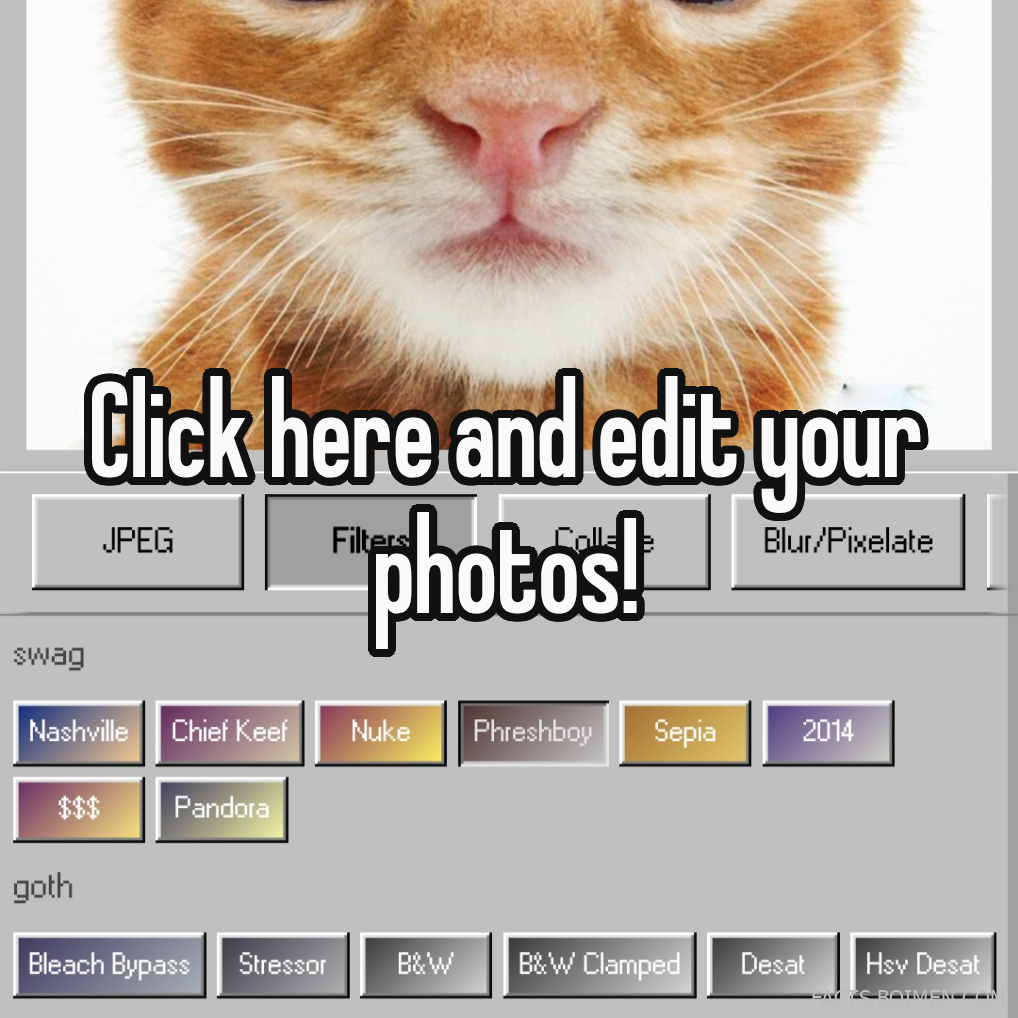
There is a very specific look that defined a decade of photos: the soft haze of a point-and-shoot digicam, the blown-out flash at a house party, the blurry background of a mall selfie, and the pixelated edges of a webcam screenshot. You do not need to hunt down a working Canon PowerShot on a marketplace to get it. A handful of browser-based editors now recreate those exact artifacts — flash glare, sensor noise, date stamps, blur, and pixelation — without installing anything.
Below are 16 online tools that specialize in digicam emulation and 2010s photo effects, plus a few bonus mentions. Every one of them runs in a browser tab, and most are free or have a usable free tier. Item one is the tool this list was built around.
Table of Contents(Click to Toggle)
Why the Digicam and 2010s Look Is Suddenly Everywhere Again
Modern phone cameras are almost too good. They sharpen skin, balance exposure, and remove the grain that used to give photos texture. That is exactly why the digicam aesthetic came back: people want images that feel like memories instead of marketing shots. The look has a few recognizable ingredients — hard direct flash, visible sensor noise, slightly cool white balance, chromatic fringing around highlights, and a softness that comes from cheap optics rather than a filter slider.
The 2010s layer adds its own vocabulary: heavy vignettes, oversaturated warm tones, date stamps in the corner, and the pixelated, low-resolution quality of early social uploads. You can fake all of it with a browser tool in a few minutes. The list below separates tools that genuinely emulate a digicam from tools that simply have a “retro” preset, so you know what you are getting before you upload anything.
16 Online Digicam and 2010s Photo Effects Editors
1. Digicam Live : A browser digicam simulator with real sensor-style artifacts
What it is: A web app that turns your webcam or uploaded photo into a convincing early-2000s digital camera shot, complete with the visual quirks of a cheap CCD sensor.
Category: Digicam emulator
Why it stands out:
- It leans on sensor-accurate effects rather than a single color filter: noise, bloom around highlights, and slight lens softness.
- Works directly in the browser with a live preview, so you can frame a shot before saving.
- Good for the exact look people search for when they want that blurry, flash-lit party photo without owning the hardware.
Best for: Anyone who wants the authentic digicam feel in under a minute, no download required.
2. Retro Camera Filter : One-click 2000s color grading for any photo
What it is: A lightweight filter tool aimed at the warm, slightly washed-out color palette of mid-2000s compact cameras.
Category: Filter editor
Why it stands out:
- Presets are grouped by era, so you can pick a 2006 point-and-shoot look or a 2012 phone-camera look separately.
- Adjustable intensity means you can dial the effect back if the grain gets too heavy for a portrait.
- Runs fast on mobile browsers, which matters if you are editing photos you just took.
Best for: Quick color-only retro edits where you do not need pixel-level control.
3. PhotoMosh : Glitch, pixelate, and datamosh effects in the browser
What it is: A glitch-art playground with dozens of effects including pixel sorting, JPEG corruption, and heavy pixelation.
Category: Glitch and distortion editor
Why it stands out:
- The pixelate and mosaic modules are genuinely strong if you need to obscure a face or a background.
- Effects can be stacked and randomized, which is how you get that broken-file 2010s Tumblr look.
- Exports both stills and short video loops, useful for animated retro posts.
Best for: Deliberately messy, glitchy edits and pixelation that hides detail rather than smoothing it.
4. Pixlr E : A familiar layered editor with retro-friendly tools
What it is: A full browser photo editor with layers, masking, and a large effects library.
Category: Full photo editor
Why it stands out:
- You can build a reusable digicam recipe: noise layer, warm color balance, vignette, then save it as a preset.
- The blur and pixelate brushes let you soften or censor specific areas instead of the whole image.
- Familiar layout if you have used desktop editors, so the learning curve is short.
Best for: People who want control over where the retro effect lands, not just a global filter.
5. Photopea : A near-desktop editor that opens PSD files free
What it is: A remarkably complete browser editor that mimics professional desktop software, including layer styles and adjustment layers.
Category: Full photo editor
Why it stands out:
- Supports PSD, XCF, and Sketch files, so shared retro templates actually open correctly.
- Camera Raw-style filters and curves give you precise control over the faded 2010s contrast curve.
- Free with ads; no account needed for basic editing.
Best for: Anyone following a digicam editing tutorial that references desktop-style tools.
6. BeFunky : Retro filters plus a simple collage builder
What it is: An all-in-one editor with photo effects, frames, and a collage maker.
Category: Filter and collage editor
Why it stands out:
- The vintage and grunge categories include grain and light-leak effects that suit digicam shots.
- Collage templates are handy for the multi-photo 2010s blog-post format.
- Batch editing on paid plans helps if you are processing a whole camera roll.
Best for: Turning a set of retro photos into a grid or collage quickly.
7. Fotor : Preset-driven retro looks with AI assistance
What it is: A browser editor with a large filter library and AI-powered enhancement tools.
Category: Filter editor
Why it stands out:
- Retro and film filter packs are clearly labeled, so you can preview several eras side by side.
- The blur tool includes a background-only mode, useful for faking shallow depth of field.
- Works well on tablets, which is convenient for editing on a bigger screen.
Best for: Casual editors who want a strong preset without building one from scratch.
8. LunaPic : A long-running free editor with a huge effects menu
What it is: An old-school browser editor that has been adding effects for years, including pixelate, blur, and old-photo tools.
Category: Effects editor
Why it stands out:
- The pixelate and mosaic options are simple and effective for obscuring faces or logos.
- It also has a dedicated old-photo effect, which pairs well with digicam grain.
- No account required, and it handles quick one-off edits without fuss.
Best for: Fast, free pixelation and blur when you do not want to sign up for anything.
9. MockoFun : Text, overlays, and retro effects in one canvas
What it is: A design tool with photo effects, text styling, and shape overlays.
Category: Design and effects editor
Why it stands out:
- Great for adding date stamps, fake camera text, or a 2010s-style caption directly onto the image.
- Includes blur and pixelate filters alongside its design elements.
- Templates make it easy to keep a consistent retro look across several posts.
Best for: Retro edits that need typography or graphic overlays, not just a filter.
10. Kapwing : Browser editing with strong blur and pixelate tools
What it is: A media editor built for images and short video, with a clean timeline interface.
Category: Image and video editor
Why it stands out:
- The blur and pixelate effects can be applied to selected regions, which is ideal for hiding background details.
- Because it handles video too, you can apply the same retro treatment to short clips.
- Exports are straightforward, and the free tier covers most single-image jobs.
Best for: Editing both photos and short videos with the same retro or censorship effect.
11. Canva : Templates and effects for consistent retro posts
What it is: A mainstream design platform with photo filters, blur, and pixelate options inside its editor.
Category: Design platform
Why it stands out:
- Its filter set includes retro and film categories, and the blur tool supports background-only blurring.
- You can save a retro style and apply it across a whole series of posts.
- Free tier is generous for personal projects, though some effects are premium.
Best for: Keeping a consistent 2010s aesthetic across a feed or a small project.
12. Pinetools : Tiny single-purpose utilities for pixelate and blur
What it is: A collection of small browser tools, each doing one job, including image pixelation and blurring.
Category: Utility toolbox
Why it stands out:
- No sign-up, no clutter: you upload, pick a pixel size, and download the result.
- Useful when you need a single effect without opening a full editor.
- Also includes resize and crop tools, handy for prepping retro images at the right dimensions.
Best for: One-off pixelation or blur jobs where speed matters more than fine control.
13. IMG2GO : Convert, resize, and apply effects in one place
What it is: A multi-tool site for image conversion, resizing, and basic editing effects.
Category: Conversion and editing toolbox
Why it stands out:
- Handles format conversion, which is useful when exporting retro edits for older platforms.
- Includes blur and pixelate options alongside its conversion tools.
- Works without installing software, and supports batch operations on some tools.
Best for: Preparing retro images in the right format and size for sharing.
14. VanceAI : AI enhancement that pairs well with retro effects
What it is: An AI-powered image tool suite for upscaling, denoising, and sharpening.
Category: AI image enhancement
Why it stands out:
- Useful for the reverse workflow: clean up an old digicam photo first, then reapply grain selectively.
- The upscaler can rescue low-resolution 2010s images before you edit them.
- Free credits let you test the tools before committing.
Best for: Restoring a genuinely old photo before giving it a deliberate retro treatment.
15. Cleanup.pictures : Erase distractions with a brush
What it is: A browser tool that removes objects or people from a photo by painting over them.
Category: Object removal
Why it stands out:
- Clean backgrounds make retro filters look intentional rather than messy.
- It is fast and works on mobile, with a simple brush interface.
- The free version handles reasonably sized images, which is enough for most social posts.
Best for: Tidying a photo before you apply a digicam or 2010s filter over it.
16. Squoosh : Compress and add authentic low-quality texture
What it is: A browser image compressor that shows a live before-and-after comparison.
Category: Compression tool
Why it stands out:
- Lowering JPEG quality deliberately introduces the blocky compression artifacts that define 2010s uploads.
- The split-screen preview lets you find the exact point where the image looks retro but still readable.
- Runs entirely in the browser and does not upload your files to a server.
Best for: Adding authentic low-resolution texture, or shrinking files before posting.
Bonus Mentions
Remove.bg : Instant background removal for cleaner retro edits
What it is: A one-click background remover that isolates your subject.
Category: Background removal
Why it stands out:
- Useful when you want to drop a digicam-style subject onto a different backdrop.
- Fast and accurate on portraits, with a free low-resolution download.
Best for: Swapping backgrounds before applying a retro filter.
VEED : Quick video edits with blur and pixelate options
What it is: A browser video editor with effects, text, and privacy tools.
Category: Video editor
Why it stands out:
- Blur and pixelate can be applied to moving subjects, which still images cannot do.
- Good for turning a short clip into a retro-looking loop.
Best for: Retro or censored effects on short video clips.
iLoveIMG : Batch resize and compress for retro photo sets
What it is: A set of image utilities for resizing, cropping, converting, and compressing.
Category: Image utility suite
Why it stands out:
- Batch processing saves time when you have a whole folder of digicam-style shots.
- Compression can add the same low-quality texture as a dedicated compressor.
Best for: Preparing multiple retro images at once.
BIRME : Bulk resize images right in your browser
What it is: A simple bulk image resizer that runs locally in the browser.
Category: Resize tool
Why it stands out:
- No uploads to a server, which is reassuring for personal photos.
- Fast for prepping a set of images to a consistent retro size.
Best for: Resizing a batch of photos before editing.
Digicam Filter : A focused digicam-style filter page
What it is: A single-purpose site that applies a digicam-style filter to uploaded photos.
Category: Digicam filter
Why it stands out:
- It does one thing, so there is no menu hunting.
- A quick option when you want the look without learning a full editor.
Best for: A fast digicam filter on a single photo.
The Best Digicam Effects Are the Ones You Actually Use
Getting the 2010s look is less about finding one magic filter and more about layering the right ingredients: a bit of grain, a warm color shift, softened highlights, and occasionally a deliberate drop in resolution. The tools above cover every part of that workflow, from a dedicated digicam simulator to simple pixelation utilities and compressors that add authentic texture.
Start with the tool that matches your goal. If you want the full effect in one click, a digicam simulator is the fastest route. If you want to hide a face or a background detail, reach for a pixelate or blur tool. If you want the grainy, low-resolution feel of an old upload, a compressor will do more than any filter preset.
Most of these run free in a browser tab, so there is no reason to install anything or dig an old camera out of a drawer. Pick one, upload a photo, and see how quickly a modern shot starts to feel like a memory.
Which of these did you end up using, and do you have a favorite retro editor that did not make the list? Share it in the comments.