Most people read without thinking about it. The letters line up, the words snap into meaning, and the page disappears behind the story. For roughly one in ten readers, that never quite happens. Letters swap places, lines wobble, and decoding a single sentence can take real effort. A dyslexia simulator lets you feel a small piece of that friction in your own browser, usually in under a minute.
These tools are used by teachers preparing inclusive lessons, designers testing readable fonts, parents trying to understand a child’s homework struggle, and curious readers who simply want to know what the page looks like from the other side. Below are 16 dyslexia simulators and closely related readability tools worth trying, starting with the one that inspired this list.
Table of Contents(Click to Toggle)
- Why Dyslexia Simulators Are Worth Five Minutes of Your Time
- 16 Dyslexia Simulator and Readability Tools
- 1. Dsxyliea
- 2. Dyslexia Simulation by Understood
- 3. WebAIM Dyslexia Simulation
- 4. OpenDyslexic
- 5. Lexend Font
- 6. Atkinson Hyperlegible
- 7. NoCoffee Vision Simulator
- 8. Funkify
- 9. Colour Blindness Simulator by Coblis
- 10. Readable.com
- 11. Hemingway Editor
- 12. BeeLine Reader
- 13. Immersive Reader by Microsoft
- 14. Helperbird
- 15. Texthelp Read&Write
- 16. Voice Dream Reader
- Bonus Mentions
- The Quiet Power of Seeing Reading Differently
Why Dyslexia Simulators Are Worth Five Minutes of Your Time
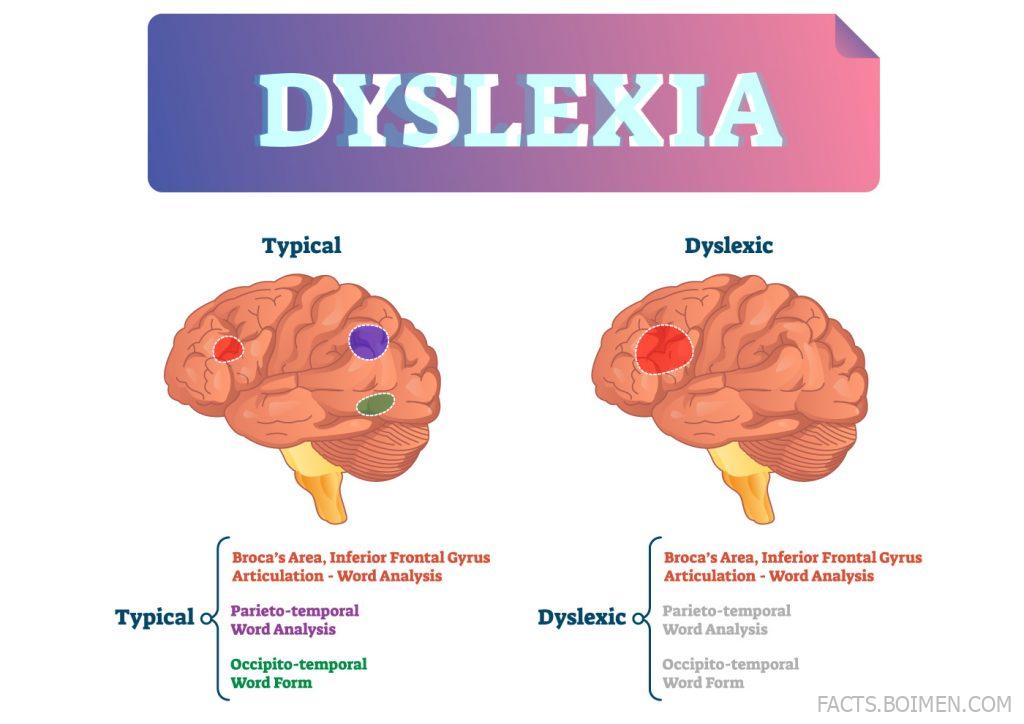
Dyslexia is not a vision problem and it is not a measure of intelligence. It is a difference in how the brain processes written language, and it affects millions of capable readers. What makes simulators so useful is that they convert an abstract explanation into a felt experience. When letters start swapping mid-paragraph, you stop thinking of dyslexia as a label and start thinking of it as a daily puzzle.
That shift matters in practical places. A teacher who has tried a simulator is more likely to give extra time without being asked. A web designer who has seen scrambled text is more likely to fix line spacing and font choice. A parent who has felt the friction is more likely to respond with patience instead of frustration at homework time.
These tools are also genuinely fun to poke at. Many run directly in a browser tab with no signup, and a few are so simple that you can test them on your phone while waiting for coffee. The list below mixes full simulations with the fonts, overlays, and readability checkers that people actually use to make text easier to read.
16 Dyslexia Simulator and Readability Tools
1. Dsxyliea : The original scrolling text simulation that started this whole list
What it is: A single-page web experiment that renders a passage of text while constantly swapping, flipping, and jumbling letters as you read.
Category: Browser-based reading simulation
Why it stands out:
- It runs instantly with no account, download, or settings to configure
- The letter scrambling happens live as your eyes move across the paragraph, which mimics the unstable feel of decoding text
- It is short enough to finish in about a minute, making it easy to share with a class or a team
Best for: Anyone who wants the fastest possible taste of reading friction before exploring deeper tools.
2. Dyslexia Simulation by Understood : A guided experience built for parents and teachers
What it is: An educational simulation from a nonprofit focused on learning differences, designed to walk you through common reading and writing challenges.
Category: Educational simulation
Why it stands out:
- It pairs the simulation with plain-language explanations of what is happening and why
- The framing is aimed at adults supporting a struggling reader, not just curiosity
- It links onward to practical classroom and homework strategies
Best for: Parents and educators who want context alongside the experience.
3. WebAIM Dyslexia Simulation : Accessibility-focused text distortion you can apply to real pages
What it is: A set of accessibility resources from WebAIM, a long-running web accessibility project, including simulations and guidance on readable text.
Category: Web accessibility resource
Why it stands out:
- It connects simulation directly to concrete design fixes like line height and contrast
- The material is written for people who build websites, so it translates into real changes
- It is a stable, well-cited reference you can return to over time
Best for: Designers and developers auditing a site for readability.
4. OpenDyslexic : A free typeface with weighted letter bottoms to reduce flipping
What it is: An open-source font designed so each letter has a heavier base, which helps anchor characters that are easy to confuse.
Category: Typeface
Why it stands out:
- It is free to download and use, including in commercial projects
- The distinctive letter shapes make b, d, p, and q easier to tell apart at a glance
- It is available as a browser extension and an e-reader option in several apps
Best for: Readers who want a font they can apply across documents and websites.
5. Lexend Font : A readability-first family backed by reading research
What it is: A font family developed with the goal of improving reading proficiency by reducing visual crowding.
Category: Typeface
Why it stands out:
- It comes in multiple weights and widths so you can tune spacing to your preference
- It looks clean and conventional, which makes it easy to use in professional documents
- It is bundled with several reading apps and available through Google Fonts
Best for: People who want readability benefits without an obviously unusual typeface.
6. Atkinson Hyperlegible : A free font built for low-vision legibility
What it is: A typeface from the Braille Institute that emphasizes distinguishing between similar-looking characters.
Category: Typeface
Why it stands out:
- Letters like I, l, and 1 are deliberately drawn to be unmistakable
- It is free for both personal and commercial use
- It works well in signage, forms, and interfaces where clarity beats style
Best for: Anyone designing labels, forms, or documents that must be read correctly the first time.
7. NoCoffee Vision Simulator : See a webpage through impaired vision
What it is: A browser extension that overlays various vision conditions onto any website you visit.
Category: Browser extension
Why it stands out:
- It simulates blur, contrast loss, and field-of-view restrictions on real pages
- You can toggle effects on and off to compare before and after instantly
- It is a quick reality check for color contrast and text size choices
Best for: Web designers testing whether a layout survives imperfect vision.
8. Funkify : A disability simulator that turns browsing into a challenge
What it is: A browser extension that simulates a range of disabilities, including dyslexia, tremor, and vision differences, while you use the web.
Category: Browser extension
Why it stands out:
- It includes a dyslexia mode that scrambles text on real sites you already use
- Multiple simulations can run together for a more layered experience
- It is popular in UX workshops as a fast empathy exercise
Best for: Teams running accessibility training or usability testing sessions.
9. Colour Blindness Simulator by Coblis : Check how color choices read for everyone
What it is: A free online tool that applies color vision deficiency filters to any image you upload.
Category: Image simulation tool
Why it stands out:
- It supports several types of color vision deficiency with one-click filters
- You can upload a screenshot of your own design and see problem areas immediately
- No account or software install is required
Best for: Checking charts, maps, and interfaces that rely on color coding.
10. Readable.com : Score your text before you publish it
What it is: An online readability checker that analyzes documents and web pages for clarity and reading level.
Category: Readability analysis
Why it stands out:
- It flags long sentences, passive voice, and overly complex words
- It offers a free tier for shorter documents, which is enough for most blog posts
- Scores are tied to familiar frameworks like Flesch-Kincaid
Best for: Writers who want their work to be easier for every reader, including those with dyslexia.
11. Hemingway Editor : The free, blunt editor that simplifies your sentences
What it is: A writing tool that highlights hard-to-read sentences and suggests simpler alternatives.
Category: Writing and readability tool
Why it stands out:
- The color-coded highlighting makes problems visible at a glance
- The web version is free and requires no signup
- It encourages shorter sentences, which benefits readers who struggle with long clauses
Best for: Bloggers, students, and anyone writing for a broad audience.
12. BeeLine Reader : A color gradient that guides your eyes down the page
What it is: A reading tool that applies a subtle color gradient across lines of text to help the eye track from one line to the next.
Category: Reading aid
Why it stands out:
- The gradient reduces the chance of losing your place and rereading the same line
- It is available as a browser extension and inside some library and school platforms
- It works alongside other reading tools rather than replacing them
Best for: Readers who find themselves skipping or repeating lines.
13. Immersive Reader by Microsoft : Free read-aloud, spacing, and syllable tools built into familiar apps
What it is: A reading support feature built into Microsoft Edge, Word, and OneNote that can read text aloud and adjust its appearance.
Category: Built-in reading support
Why it stands out:
- It can increase line and letter spacing, which reduces visual crowding
- Read-aloud highlighting links spoken words to printed ones in real time
- It is already installed on most Windows devices, so there is nothing new to buy
Best for: Students and office workers who want help without installing extra software.
14. Helperbird : An accessibility toolbar for any website
What it is: A browser extension that adds reading aids such as dyslexia-friendly fonts, text-to-speech, and page overlays.
Category: Browser extension
Why it stands out:
- It bundles many small fixes into one toolbar instead of juggling separate add-ons
- Settings can be applied to specific sites, so your favorite reading spots stay comfortable
- It includes a reading ruler and color overlays for line tracking
Best for: Heavy browser users who want a single, configurable reading toolkit.
15. Texthelp Read&Write : The classroom standard for reading and writing support
What it is: A literacy support toolbar used widely in schools and workplaces, offering text-to-speech, word prediction, and dictionary tools.
Category: Literacy support software
Why it stands out:
- It supports both reading and writing, covering the full homework loop
- Word prediction reduces the typing burden for users who struggle with spelling
- It is available across Windows, Mac, Chrome, and iPad
Best for: Students with formal reading accommodations and the staff who support them.
16. Voice Dream Reader : Turn any document into an audiobook
What it is: A mobile reading app that reads documents, ebooks, and web articles aloud with adjustable voices and highlighting.
Category: Mobile reading app
Why it stands out:
- It handles PDFs, EPUBs, and web pages, so course material is covered
- You can adjust reading speed and voice to match your comfort level
- Highlighting follows the spoken text, linking sound and print
Best for: Commuters and students who absorb more by listening than by scanning.
Bonus Mentions
Learning Ally : Human-narrated audiobooks for students who read differently
A nonprofit audiobook library with real human narration, which many listeners find warmer and easier to follow than synthetic voices. Access is typically arranged through a school or membership.
Bookshare : A large accessible ebook library for qualifying readers
Bookshare offers hundreds of thousands of accessible titles in formats like audio, braille, and large print. It is free for qualifying U.S. students and available by subscription for other readers.
Libby by OverDrive : Borrow ebooks and audiobooks with your library card
Libby connects to your local library and lets you switch between reading and listening in the same app. The built-in font and spacing controls are a quiet win for readability.
Speechify : Fast text-to-speech for articles, documents, and screenshots
Speechify reads almost anything you can put on a screen, including photographed pages. The speed controls are unusually flexible, which suits listeners who like to move quickly.
NVDA : A free, open-source screen reader for Windows
NVDA is a fully featured screen reader maintained by a nonprofit. It is a strong free option for anyone who wants to explore how assistive technology navigates the web.
The Quiet Power of Seeing Reading Differently
None of these tools claim to reproduce dyslexia exactly, and that honesty is part of what makes them useful. A simulator is a window, not a mirror. What it does well is build a bridge between an explanation and an instinct, so that the next time a reader needs extra time, a different font, or a listening option, the request feels obvious rather than strange.
Start with Dsxyliea if you only have a minute. Then pick one font and one reading aid from the list and try them on something you actually need to read this week, whether that is a work report, a textbook chapter, or a long news article. Small changes in spacing, typeface, and audio support add up faster than most people expect.
Which tool from this list surprised you the most, and have you found any hidden-gem reading aids that deserve a spot here?